Showing posts with label PLC. Show all posts

Sunday, February 19, 2017

Raspberry Pi - pymodbus Youtube Series

I've been out of the game lately on my blog and wanted to give an update of my latest work on youtube.. I've been able to post a few video tutorials on pymodbus and wanted to show a preview of my youtube tutorial roadmap.

Pymodbus ModbusTCP - Reading Holding Registers
Pymodbus ModbusTCP - Reading & Writing Holding Registers
Pymodbus Raspberry Pi as Modbus Serial<->TCP Bridge
Pymodbus - RPi as ModbusTCP Slave Temperature Sensor
SCADA Datalogger - snap7 and Pymodbus
Pymodbus ModbusTCP - Reading And Writing Raspberry PI GPIO using ModbusTCP
Raspberry Pi - Tutorials - Snap7 Python - Raspberry Pi as S7 Device
Raspberry Pi - Tutorials - Snap7 Python - Reading & Writing Rpi GPIO using snap7 and Kepsever
Raspberry Pi - Tutorials - SCADA SQL Logger - snap7 and Pymodbus MSSQL

Dates are not yet decided.  I hope to get two of these a month. Let me know if you wish to see another one
So far these 4 are done:

Raspberry Pi - Tutorials - Pymodbus ModbusTCP - Setup & Quick Example (Writing To Twido M Memory)


Wednesday, December 28, 2016

Rasberry Pi - Tutorials - S7-1200 & Snap7 Python - Controlling the PLC Using Rpi GPIO


Long awaited video on how to use the Rpi GPIO to control aspects of the PLC.

Intro to controlling Raspberry Pi's GPIO using python:

Raspberry Pi - Tutorials - GPIOZero - Controlling LEDS Using Rpi GPIO


Using the snap7zero and gpiozero to control the S7-1200 PLC with the Raspberry Pi:

Rasberry Pi - Tutorials - S7-1200 & Snap7 Python - Controlling the PLC Using Rpi GPIO

Monday, February 29, 2016

Raspberry Pi - Python Snap7 - Mapping and Reading Datablocks


import snap7.client
from snap7.snap7types import *
from snap7.util import *


class DBObject(object):
    pass


offsets = { "Bool":2,"Int": 2,"Real":4,"DInt":6,"String":256}

db=\
"""
Temperature Real 0.0
Cold Bool 4.0
RPis_to_Buy Int 6.0
Db_test_String String 8.0
"""

def DBRead(plc,db_num,length,dbitems):
    data = plc.read_area(areas['DB'],db_num,0,length)
    obj = DBObject()
    for item in dbitems:
        value = None
        offset = int(item['bytebit'].split('.')[0])

        if item['datatype']=='Real':
            value = get_real(data,offset)

        if item['datatype']=='Bool':
            bit =int(item['bytebit'].split('.')[1])
            value = get_bool(data,offset,bit)

        if item['datatype']=='Int':
            value = get_int(data, offset)

        if item['datatype']=='String':
            value = get_string(data, offset)

        obj.__setattr__(item['name'], value)

    return obj

def get_db_size(array,bytekey,datatypekey):
    seq,length = [x[bytekey] for x in array],[x[datatypekey] for x in array]
    idx = seq.index(max(seq))
    lastByte = int(max(seq).split('.')[0])+(offsets[length[idx]])
    return lastByte


if __name__ == "__main__":
    plc = snap7.client.Client()
    plc.connect('10.10.55.109',0,0)
    itemlist = filter(lambda a: a!='',db.split('\n'))
    deliminator='\t'
    items = [
        {
            "name":x.split(deliminator)[0],
            "datatype":x.split(deliminator)[1],
            "bytebit":x.split(deliminator)[2]
         } for x in itemlist
    ]
    #get length of datablock
    length = get_db_size(items,'bytebit','datatype')
    meh = DBRead(plc,10,length,items)
    print """
    Cold:\t\t\t{}
    Tempeature:\t\t{}
    RPis_to_Buy:\t{}
    Db_test_String:\t{}
    """.format(meh.Cold,meh.Temperature,meh.RPis_to_Buy,meh.Db_test_String)
    plc.disconnect();

Wednesday, February 3, 2016

Python Snap7 S7-1200 Simple Reading/Writing Memory Example


import snap7.client as c
from snap7.util import *
from snap7.snap7types import *

def ReadMemory(plc,byte,bit,datatype):
    result = plc.read_area(areas['MK'],0,byte,datatype)
    if datatype==S7WLBit:
        return get_bool(result,0,bit)
    elif datatype==S7WLByte or datatype==S7WLWord:
        return get_int(result,0)
    elif datatype==S7WLReal:
        return get_real(result,0)
    elif datatype==S7WLDWord:
        return get_dword(result,0)
    else:
        return None

def WriteMemory(plc,byte,bit,datatype,value):
    result = plc.read_area(areas['MK'],0,byte,datatype)
    if datatype==S7WLBit:
        set_bool(result,0,bit,value)
    elif datatype==S7WLByte or datatype==S7WLWord:
        set_int(result,0,value)
    elif datatype==S7WLReal:
        set_real(result,0,value)
    elif datatype==S7WLDWord:
        set_dword(result,0,value)
    plc.write_area(areas["MK"],0,byte,result)

if __name__=="__main__":
    plc = c.Client()
    plc.connect('10.10.54.2',0,1)
    print ReadMemory(plc,420,0,S7WLReal)
    WriteMemory(plc,420,0,S7WLReal,3.141592)
    print ReadMemory(plc,420,0,S7WLReal)

    #DONE!!

Monday, January 4, 2016

10+ Things the Raspberry Pi Can Do As a Cheaper Replacement in Industrial Automation


The Raspberry Pi has many Industrial Control Applications and many ways to interface with current Industrial Protocols. 

I am starting a  Raspberry Pi Industrialized Google+ Community to gather people smarter than me to answer questions,give tutorials on Raspberry Pi and PLC interfaces, show present and upcoming raspberry pi hardware, and to show off their cool industrial projects using the Raspberry Pi. 

Since I'm a python fan here's a list of Ethernet/Serial Based Protocols I've found:
  1. ModbusTCP/RTU using pymodbus 
  2. *Profinet (a GitHub link) 
  3. S7 Protocol using snap7 python (tutorial here)
    • (Siemen's S7-300,S7-1500 / S7-200,S7-1200)
  4. Koyo ECOM Protocol, (see my github, and here for example usage)
    • DL05, DL06 PLCs
  5. *EtherNet/IP (Link)
* I've not tested these libraries yet.

Here are the ways the Raspberry Pi can replace or enhance your Industrial Automation Process:

  • Bridging Protocols.  Normally a protocol converter/bridge can cost $100+

    • Modbus RTU <--> Modbus TCP,Siemens S7, Koyo ECOM, EtherNet/IP
    • Modbus TCP <--> Siemens S7, Koyo ECOM, EtherNet/IP
    • Any Other Serial ASCII Device <--> Modbus TCP, Siemens S7, Koyo ECOM, EtherNet/IP
  • Cheap HMI Screen Replacement.  HMI can cost $1000s and since the Raspberry Pi can integrate with several protocols it could be a decent replacement to save some $$$, £££, or €€€ depending on where you live. Of course it may take some knowledge on either HTM5 with websockets or using QT as your front ends. 

  • Remote Relay I/O.


  • Remote Analog I/O


  • Custom Raspberry Pi.  Lastly I am going to mention the customizable Raspberry Pi.  Yes, Customizable!  Element14 can customize the board to fit your process a little better.  Adding Wifi, more GPIO, onboard Flash memory, and others.

Saturday, January 2, 2016

Raspberry Pi - SCADA - Another Video Tutorial Snap7 Python for S7-1200 PLC

Another Simple snap7 Python Tutorial


Covers creating a simple example on turning on and off a PLC output.

 import snap7.client as c
 from snap7.util import *
 from time import sleep


 def WriteOutput(dev,bytebit,cmd):
     byte,bit = bytebit.split('.')
     byte,bit = int(byte),int(bit)
     data = dev.read_area(0x82,0,byte,1)
     set_bool(data,byte,bit,cmd)
     dev.write_area(0x82,byte,data)

 def main():
     myplc = snap7.client.Client()
     myplc.connect('10.10.54.2',0,1)
     for x in range(10):
         WriteOutput(myplc,'0.0',x%2==0) # turns true every other iteration
         sleep(1)

 if __name__ == "__main__":
     main()

Thursday, December 24, 2015

New S7-1200 & Snap7 Walkthrough Video Uploaded


I'm going to try and start a series of videos on python snap7 tutorial using my Raspberry Pi.
Here's the setup walkthrough :-)
Youtube link: https://youtu.be/yJNEsI5KJxs

Subscribe to my channel to keep up to date  Channel Link

Let me know what kind of things you'd like to see in the series :-)

Enjoy!


Monday, November 9, 2015

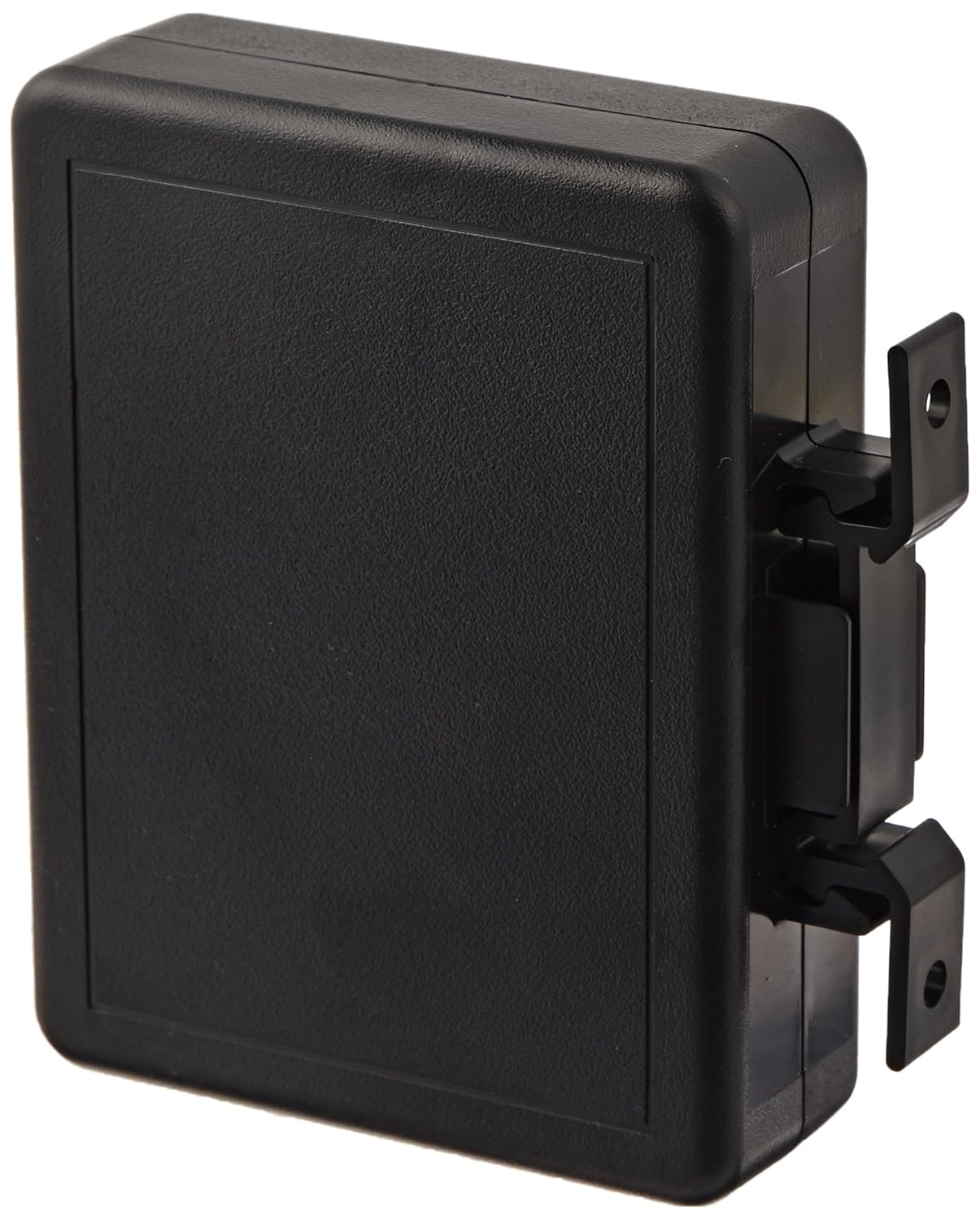
Build your own Raspberry Pi Din Rail Enclosure

If you want to make your pi more industrial and connect it to some din rail and want a relatively cheap solution I found a couple parts that can your Raspberry Pi for under $15.
Comes with a 24v power input and doesn't take too long to make...
Parts:
BUD Industrial Plastic Din Rail Box.

7-24v to 5v 3A DC-DC Converter:


And some time cutting tools... I was able to use a Dremel. (and even with that I made some crooked cuts)


Cut out slot for the  24v dc converter

 Cut out usb & lan slots


Saturday, April 25, 2015

Raspberry Pi SCADA: Communitating with S7-200 Using Python

Video Demo

For how to compiling snap7 on the pi click here

Since the S7-200 is a bit different then the newer S7-1500/S7-1200 PLCs it took a bit of work to get it working. The python-snap7 library was missing the connection method for the old TSAP method of connecting. So I forked the library and added the missing function to connect. I did a pull request to get it merged back with the original and it's pending currently. Here is the link to the forked library:
https://github.com/SimplyAutomationized/python-snap7

I've also been working on a din rail enclosure for the pi that wasn't so large.   I'm going to be adding a 24vdc to 5vdc dc-dc converter to the enclosure it so I don't have to bring in usb to it.


Anyway back to the good stuff. I added the Cli_Connection in the Client.py library so the code will now be as follows:

import snap7 as p

plc = p.client.Client()
plc.set_connection_params('10.10.55.250',11,11)
plc.connect()
print plc.get_connected()
if(plc.get_connected()):
    plc.disconnect()
If you import my helper S7200.py library from github the code is as follows:
import S7200 as p
plc = p.S7_200('10.10.55.250',0x1100,0x1100,debug=True)
plc.writeMem('QX0.0',True)
print plc.getMem('freal10')
plc.writeMem('freal10',3.141592653589)
print plc.getMem('freal10')
print plc.getMem('QX0.0')


  • This will turn on output 1 (Q0.0, will turn on if there's no ladder associated with it). 
  • Then read the real number stored in V memory 10. 
  • Then write pi to it ;-). 
  • Then read from it again.
  • Then read if output 1 (Q0.0) is on still\
Github for helper library found here:
https://github.com/SimplyAutomationized/raspberrypi/blob/master/S7-200pi/S7200.py


Monday, April 6, 2015

Raspberry Pi getting data from a Koyo DL-06 using python


It was an interesting process to sniff and break apart the ECOM protocol. But with the help of Wireshark I was able to create a simple class to read/write Inputs,Outputs,V Memory, and C Memory Bits.  My class may look a bit hokey to those more skilled at python than I, but I've found it very usefull.

If you're stuck with an old generation H0-ECOM ethernet module and want to make use of it this post may be of use to you.  I was able to get a few from work as we phased in new gear.  We only had a couple ECOM-100 modules (ModbusTCP). So I was driven to get these working with my Raspberry Pi.

With mine I made a raspberry controlled sprinkler system using the Koyo DL-06 as my remote I/O.  There was no logic programmed into the PLC because I wanted my pi to control it 100%. But with this python code anyone could make a raspberry pi powered cheap HMI or web based HMI for their system.

Link to PythonKoyo library:
https://github.com/SimplyAutomationized/PythonKoyo/blob/master/Koyo.py

Example code:

import Koyo as plc

myKoyo = plc.Koyo('192.168.1.26')
myKoyo.WriteOutput(0,1) # write output Y0 to true, (if this isn't tied to any rung in the ladder it should turn on)
print myKoyo.ReadInput(5)
print myKoyo.ReadC(16) #this currently only returns data of the first 4 bytes of C Memory
if(myKoyo.ReadOutput(5)):
   myKoyo.WriteC(16,false)
else:
   myKoyo.WriteC(16,true)

#other helpful commands:
myKoyo.FindKoyo()          #return a list (ip,mac) of koyo plcs on the network
myKoyo.ChangeIP(mac,newIP) #change an ip address of a koyo that's plugged into your subnet

Hope this helps anyone with a Koyo. Other options are trying to install the C Library AutomationDirect provides on the website. I was unable to compile it and found this much more enjoyable.

Sunday, March 15, 2015

Raspberry Pi SCADA Part 3: Communicate with the Pi using S7 Protocol.


I've been planning on trying this and have been able to get some success. In this example we are going to serve up temperature from the Raspberry Pi using Siemens S7 Protocol. I'm using Wonderware and their DAServer in my tests and will show images of the setup. 

For this example in Modbus TCP see here
To use the Pi to communicate with a PLC see here


First From a fresh Raspbian Image:

For Raspberry Pi 2 B add the following to the bottom boot/config.txt

#device tree config
dtoverlay=w1-gpio,gpiopin=4


Add the following to the /etc/modules

w1-gpio
w1-therm

Install python pip:

sudo apt-get install python-pip
#Download and build the latest snap7 library:

wget http://iweb.dl.sourceforge.net/project/snap7/1.3.0/snap7-full-1.3.0.tar.gz
tar -zxvf snap7-full-1.3.0.tar.gz
cd snap7-full-1.2.1/build/unix
#if you have a Raspberry Pi 2 B use this command to compile:
make –f arm_v7_linux.mk
sudo cp ../bin/arm_v7-linux/libsnap7.so /usr/lib/
sudo ldconfig

#if you have a Raspberry B,B+,A,A+ then use this command to compile:
make –f arm_v6_linux.mk all
sudo cp ../bin/arm_v6-linux/libsnap7.so /usr/lib/
sudo ldconfig

Download and install python-snap7

sudo pip install python-snap7

Now the Pi should be ready!

We are going to serve up temperature data from a DS18b20 probe connected to the pi. If you are unsure how to connected the probe see here
import time,ctypes
from ctypes import *
import logging
from threading import Thread
import snap7
import snap7.snap7types
import sys
import os
from time import sleep

logging.basicConfig()
logger = logging.getLogger()
logger.setLevel(logging.INFO)
globalData = (snap7.snap7types.wordlen_to_ctypes[snap7.snap7types.S7WLByte]*128)()
digitalOutputs = (snap7.snap7types.wordlen_to_ctypes[snap7.snap7types.S7WLByte]*16)()
digitalInputs = (snap7.snap7types.wordlen_to_ctypes[snap7.snap7types.S7WLByte]*128)()
server = None

class TempProbe(Thread):
    """
     A class for getting the current temp of a DS18B20
    """
    def __init__(self, fileName='',tempChangeEvent=None):
        Thread.__init__(self)
        self.tempDir = '/sys/bus/w1/devices/'
        list = os.listdir(self.tempDir)
        if(list[0][:2]=="28"):
         fileName=list[0]
        self.fileName = fileName
        self.currentTemp = -999
        self.correctionFactor = 1
        self.enabled = True
        self.oldTemp = 0
        self.temperatureChangeEvent=tempChangeEvent
    def run(self):
            while self.enabled:
                try:
                        f = open(self.tempDir + self.fileName + "/w1_slave", 'r')
                        lines = f.readlines()
                        crcLine = lines[0]
                        tempLine = lines[1]
                        result_list = tempLine.split("=")
                        temp = float(result_list[-1])/1000      # temp in Celsius
                        temp += self.correctionFactor           # correction factor
                # if you want to convert to Celsius, comment this line
                        temp = (9.0/5.0)*temp + 32
                        if crcLine.find("NO") > -1:
                                temp = -999
                        self.currentTemp = temp
                        if self.currentTemp != self.oldTemp and self.temperatureChangeEvent:
                                self.oldTemp = self.currentTemp
                                self.temperatureChangeEvent(self.currentTemp)

                except IOError as e:
                        print "Error: File " + self.tempDir + self.fileName + "/w1_slave" + " does not exist"
                        sleep(5)
                        pass
                sleep(1)

    # returns the current temp for the probe
    def getCurrentTemp(self):
        return self.currentTemp

    def setEnabled(self, enabled):
        self.enabled = enabled

    def isEnabled(self):
        return self.enabled

temp_probe=None

def mainloop():
        server = snap7.server.Server()
        global globaldata
        server.register_area(snap7.snap7types.srvAreaPA, 0, digitalOutputs)     # digital outputs
        server.register_area(snap7.snap7types.srvAreaMK, 0, globalData)         # internal memory
        server.register_area(snap7.snap7types.srvAreaPE, 0, digitalInputs)      # digital inputs
        server.start()
        global temp_probe
        temp_probe = TempProbe()
        temp_probe.start()       # start getting temperature async
        while True:
                while True:
                        event = server.pick_event()
                        # write temperature to input memory Input Real 67 (IREAL67)
                        snap7.util.set_real(digitalInputs, 67, temp_probe.getCurrentTemp())

                        # fires the following when an event happens (connecting clients, read requests...)
                        if event:
                                #logger.info(server.event_text(event))
                                # print server.event_text(event)
                                print temp_probe.getCurrentTemp()

                        else:
                                break
                time.sleep(.01)
        server.stop()
        server.destroy()
        temp_probe.setEnabled(False)
        temp_probe.join()

if __name__ == '__main__':
    if len(sys.argv) > 1:
        snap7.common.load_library(sys.argv[1])
    mainloop()
    temp_probe.setEnabled(False)
    temp_probe.join()

Now run it!

Setting up your Wonderware and DAserver

Add a S7Cp device
Put in the Ip Address of your Raspberry pi


Create a device group.  I called mine Pi

Add your device items. In this example we are doing temperature at IREAL67

Create an Access  Name in your wonderware. I called mine Pi

Create a tagname and reference it to our Temperature item

attach your tagname to a text field


If you wish me to show anymore examples of how to write or read inputs or outputs in the pi using this protocol please let me know.