Sunday, March 15, 2015

Raspberry Pi SCADA Part 3: Communicate with the Pi using S7 Protocol.


I've been planning on trying this and have been able to get some success. In this example we are going to serve up temperature from the Raspberry Pi using Siemens S7 Protocol. I'm using Wonderware and their DAServer in my tests and will show images of the setup. 

For this example in Modbus TCP see here
To use the Pi to communicate with a PLC see here


First From a fresh Raspbian Image:

For Raspberry Pi 2 B add the following to the bottom boot/config.txt

#device tree config
dtoverlay=w1-gpio,gpiopin=4


Add the following to the /etc/modules

w1-gpio
w1-therm

Install python pip:

sudo apt-get install python-pip
#Download and build the latest snap7 library:

wget http://iweb.dl.sourceforge.net/project/snap7/1.3.0/snap7-full-1.3.0.tar.gz
tar -zxvf snap7-full-1.3.0.tar.gz
cd snap7-full-1.2.1/build/unix
#if you have a Raspberry Pi 2 B use this command to compile:
make –f arm_v7_linux.mk
sudo cp ../bin/arm_v7-linux/libsnap7.so /usr/lib/
sudo ldconfig

#if you have a Raspberry B,B+,A,A+ then use this command to compile:
make –f arm_v6_linux.mk all
sudo cp ../bin/arm_v6-linux/libsnap7.so /usr/lib/
sudo ldconfig

Download and install python-snap7

sudo pip install python-snap7

Now the Pi should be ready!

We are going to serve up temperature data from a DS18b20 probe connected to the pi. If you are unsure how to connected the probe see here
import time,ctypes
from ctypes import *
import logging
from threading import Thread
import snap7
import snap7.snap7types
import sys
import os
from time import sleep

logging.basicConfig()
logger = logging.getLogger()
logger.setLevel(logging.INFO)
globalData = (snap7.snap7types.wordlen_to_ctypes[snap7.snap7types.S7WLByte]*128)()
digitalOutputs = (snap7.snap7types.wordlen_to_ctypes[snap7.snap7types.S7WLByte]*16)()
digitalInputs = (snap7.snap7types.wordlen_to_ctypes[snap7.snap7types.S7WLByte]*128)()
server = None

class TempProbe(Thread):
    """
     A class for getting the current temp of a DS18B20
    """
    def __init__(self, fileName='',tempChangeEvent=None):
        Thread.__init__(self)
        self.tempDir = '/sys/bus/w1/devices/'
        list = os.listdir(self.tempDir)
        if(list[0][:2]=="28"):
         fileName=list[0]
        self.fileName = fileName
        self.currentTemp = -999
        self.correctionFactor = 1
        self.enabled = True
        self.oldTemp = 0
        self.temperatureChangeEvent=tempChangeEvent
    def run(self):
            while self.enabled:
                try:
                        f = open(self.tempDir + self.fileName + "/w1_slave", 'r')
                        lines = f.readlines()
                        crcLine = lines[0]
                        tempLine = lines[1]
                        result_list = tempLine.split("=")
                        temp = float(result_list[-1])/1000      # temp in Celsius
                        temp += self.correctionFactor           # correction factor
                # if you want to convert to Celsius, comment this line
                        temp = (9.0/5.0)*temp + 32
                        if crcLine.find("NO") > -1:
                                temp = -999
                        self.currentTemp = temp
                        if self.currentTemp != self.oldTemp and self.temperatureChangeEvent:
                                self.oldTemp = self.currentTemp
                                self.temperatureChangeEvent(self.currentTemp)

                except IOError as e:
                        print "Error: File " + self.tempDir + self.fileName + "/w1_slave" + " does not exist"
                        sleep(5)
                        pass
                sleep(1)

    # returns the current temp for the probe
    def getCurrentTemp(self):
        return self.currentTemp

    def setEnabled(self, enabled):
        self.enabled = enabled

    def isEnabled(self):
        return self.enabled

temp_probe=None

def mainloop():
        server = snap7.server.Server()
        global globaldata
        server.register_area(snap7.snap7types.srvAreaPA, 0, digitalOutputs)     # digital outputs
        server.register_area(snap7.snap7types.srvAreaMK, 0, globalData)         # internal memory
        server.register_area(snap7.snap7types.srvAreaPE, 0, digitalInputs)      # digital inputs
        server.start()
        global temp_probe
        temp_probe = TempProbe()
        temp_probe.start()       # start getting temperature async
        while True:
                while True:
                        event = server.pick_event()
                        # write temperature to input memory Input Real 67 (IREAL67)
                        snap7.util.set_real(digitalInputs, 67, temp_probe.getCurrentTemp())

                        # fires the following when an event happens (connecting clients, read requests...)
                        if event:
                                #logger.info(server.event_text(event))
                                # print server.event_text(event)
                                print temp_probe.getCurrentTemp()

                        else:
                                break
                time.sleep(.01)
        server.stop()
        server.destroy()
        temp_probe.setEnabled(False)
        temp_probe.join()

if __name__ == '__main__':
    if len(sys.argv) > 1:
        snap7.common.load_library(sys.argv[1])
    mainloop()
    temp_probe.setEnabled(False)
    temp_probe.join()

Now run it!

Setting up your Wonderware and DAserver

Add a S7Cp device
Put in the Ip Address of your Raspberry pi


Create a device group.  I called mine Pi

Add your device items. In this example we are doing temperature at IREAL67

Create an Access  Name in your wonderware. I called mine Pi

Create a tagname and reference it to our Temperature item

attach your tagname to a text field


If you wish me to show anymore examples of how to write or read inputs or outputs in the pi using this protocol please let me know.

Monday, January 12, 2015

Stream The Raspberry Pi Camera over Websockets HTML5


I've been going through all the tutorials on how to get your pi camera to a webpage and hadn't found one that uses Websockets. So I tried it out and it worked quit well.

what you need:

  • Autobahn python websocket server
    • pip install autobahn[twisted]
  • picamera python library
    • http://www.raspberrypi.org/learning/python-picamera-setup/
  • My source at github:
    • source
    • You will have to copy the www directory to your '/usr/local/www' or change the source code to fit

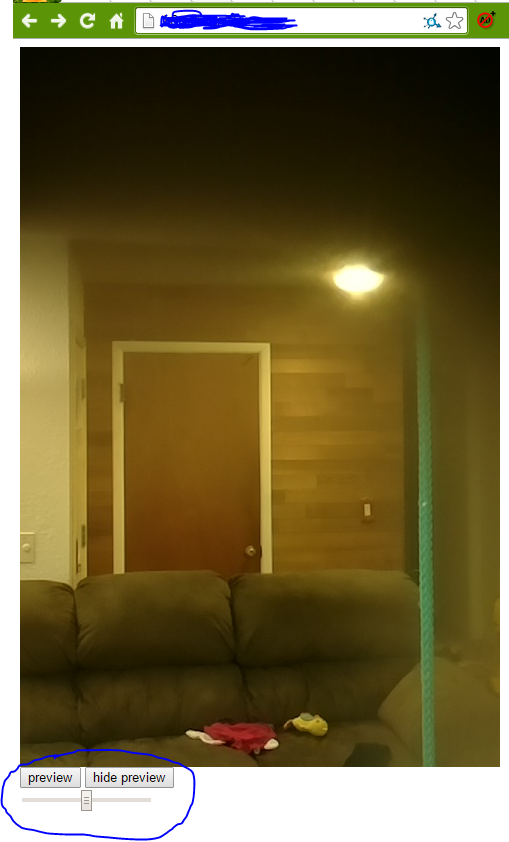
The sample webpage on the github is a basic websocket client webpage that provides a couple of features.

Since my cam is hidden within a rpi picture frame (will blog soon on that project) there's a little black around the edges.  I circled the controls I wired into the websocket server. The buttons show a preview on the raspberry pi's screen. The slider changes the framerate (0-30 fps).

The stream is smooth but still delayed like most streams to the web.

I may make updates depending on interest but its not a priority on my list of pi projects.

Let me know in the comments :-)


Saturday, December 13, 2014

Raspberry Pi getting data from a S7-1200 PLC


UPDATE: If you want the raspberry pi to be the s7 server go here
UPDATE 2: If you want to see communication with S7-200 go here
UPDATE 3: Video walkthrough on setup go here

I recently borrowed a S7-1200 PLC from work to see if I could get data from it using a Raspberry Pi. In my search for something I found that Snap7 was the best option.
Steps to getting it work
  1. Download and compile snap7 (http://sourceforge.net/projects/snap7/files/1.2.1/snap7-full-1.2.1.tar.gz/download)
  2. Download and install python library to use snap7 (https://pypi.python.org/pypi/python-snap7)


#download and compile snap7 for rpi

wget http://sourceforge.net/projects/snap7/files/1.2.1/snap7-full-1.2.1.tar.gz/download 
tar -zxvf snap7-full-1.2.1.tar.gz
cd snap7-full-1.2.1/build/unix
sudo make –f arm_v6_linux.mk all

#copy compiled library to your lib directories
sudo cp ../bin/arm_v6-linux/libsnap7.so /usr/lib/libsnap7.so
sudo cp ../bin/arm_v6-linux/libsnap7.so /usr/local/lib/libsnap7.so

#install python pip if you don't have it:
sudo apt-get install python-pip
sudo pip install python-snap7

You will need to edit the lib_location on common.py in the /usr/local/lib/python2.7/dist-packages/snap7/ directory
Add a line in the __init__ part of the Snap7Library class:
lib_location='/usr/local/lib/libsnap7.so' 
example below:


class Snap7Library(object):
    """
    Snap7 loader and encapsulator. We make this a singleton to make
    sure the library is loaded only once.
    """
    _instance = None
    def __new__(cls, *args, **kwargs):
        if not cls._instance:
            cls._instance = object.__new__(cls)
            cls._instance.lib_location = None
            cls._instance.cdll = None
        return cls._instance

    def __init__(self, lib_location=None):
        lib_location='/usr/local/lib/libsnap7.so' # add this line here
        if self.cdll:
            return
        self.lib_location = lib_location or self.lib_location or find_library('snap7')
        if not self.lib_location:
            msg = "can't find snap7 library. If installed, try running ldconfig"
            raise Snap7Exception(msg)
        self.cdll = cdll.LoadLibrary(self.lib_location)

Now you can write your client code :-)
Here's an example on how to connect and read an output Q0.0:
from time import sleep
import snap7
from snap7.util import *
import struct

plc = snap7.client.Client()
plc.connect("192.168.12.73",0,1)

area = 0x82    # area for Q memory
start = 0      # location we are going to start the read
length = 1     # length in bytes of the read
bit = 0        # which bit in the Q memory byte we are reading

byte = plc.read_area(area,0,start,length)
print "Q0.0:",get_bool(mbyte,0,bit)
plc.disconnect()


I created a helper class on my github here to make the syntax easier for people who are used to DAServer and Ladder:
https://github.com/SimplyAutomationized/raspberrypi/raw/master/S7-1200pi/S71200.py
Example on how to use it:
import S71200
from time import sleep
import snap7
from snap7.util import *
import struct

plc = S71200.S71200("192.168.21.65")
plc.writeMem('QX0.0',True) # write Q0.0 to be true, which will only turn on the output if it isn't connected to any rung in your ladder code
print plc.getMem('MX0.1') # read memory bit M0.1
print plc.getMem('IX0.0') # read input bit I0.0
print plc.getMem("FREAL100") # read real from MD100
print plc.getMem("MW20") # read int word from MW20
print plc.getMem("MB24",254) # write to MB24 the value 254
plc.plc.disconnect()


Let me know if there are questions. Hope I can help :-)
Also let me know if you can help me clean up my S71200.py helper class. I know it looks messy.

Follow me to get updates on a Raspberry pi Sensor the DA or OPC server can get data using S7 protocol.
+Simply Automationized
Check out my other SCADA posts